Tutorial: Your First Trade (Mobile)
Place your first options order in the Hypercall mobile web app.
Prerequisites
- Mobile device (iOS Safari or Android Chrome)
- Web3 wallet (MetaMask, Coinbase Wallet, or WalletConnect-compatible)
- Testnet account with funds
- Basic understanding of options trading
Step 1: Open the app and start onboarding
- Open Hypercall in your mobile browser or wallet in-app browser
- Tap "Get Started" or "Connect Wallet"
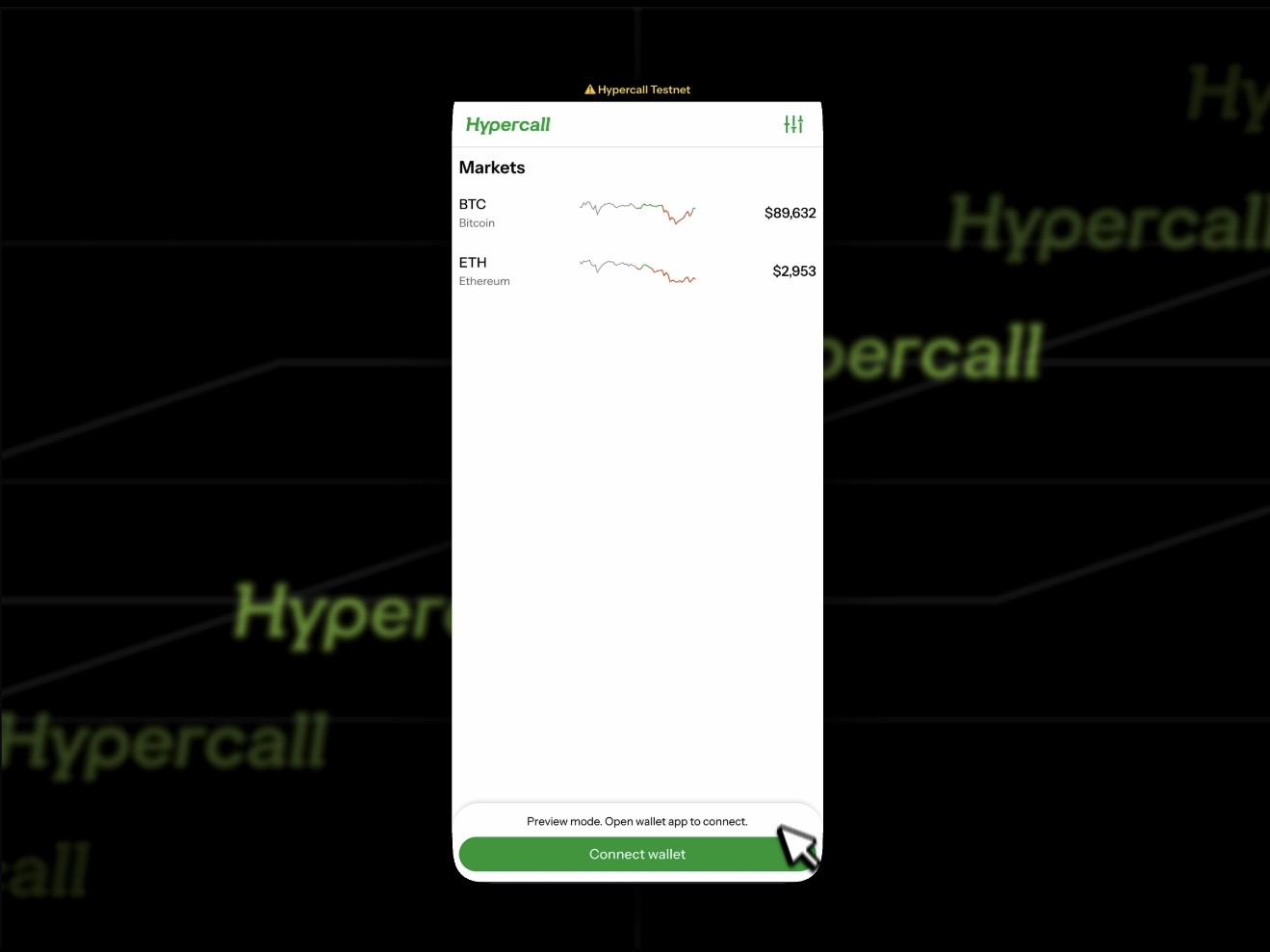
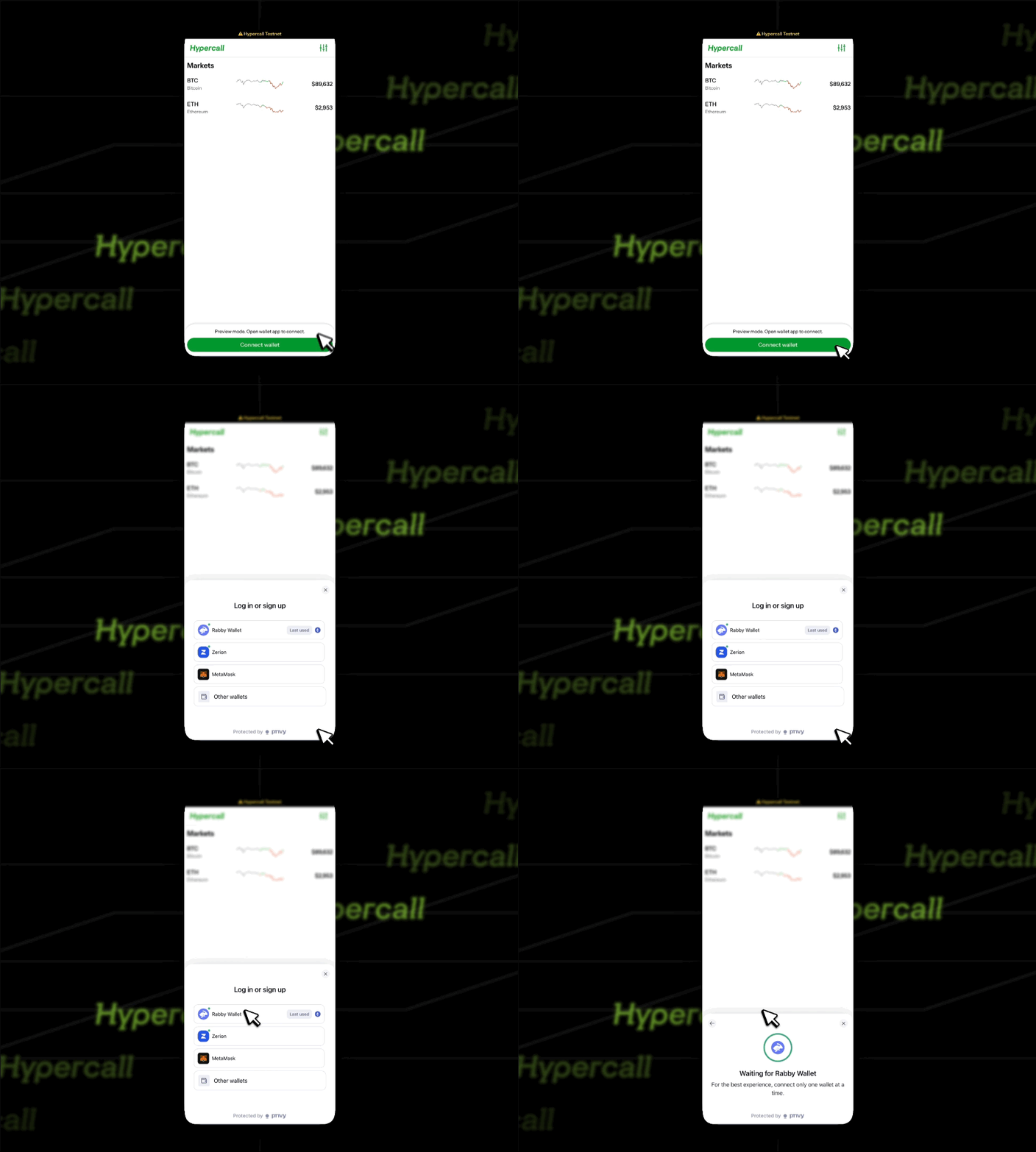
Step 2: Connect a wallet
- Select a wallet app
- Approve the connection request in your wallet
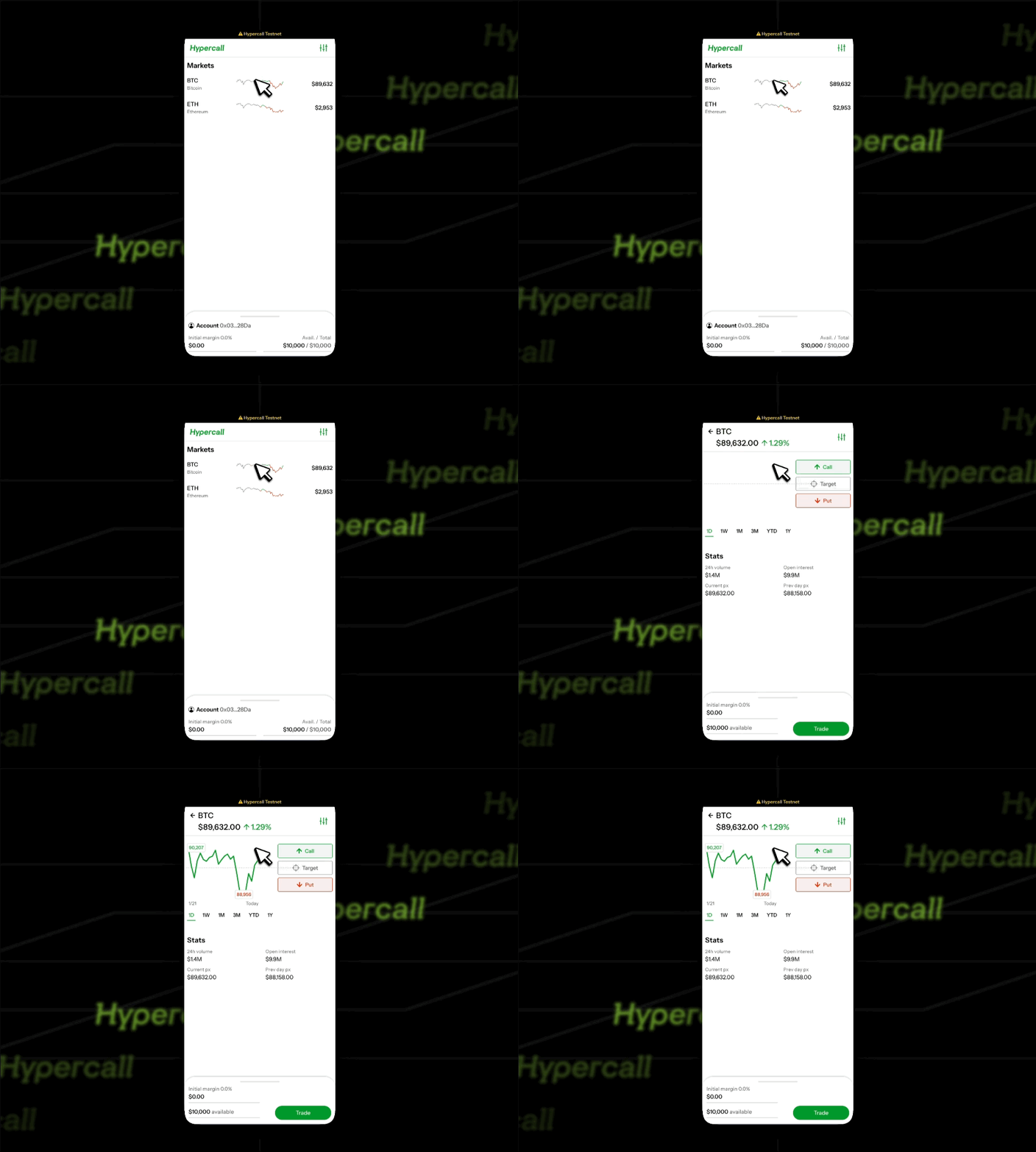
Step 3: Open a market
- From the main view, open an options market
Option A: Tap underlying to open market page
Option B: Swipe to left buy a call or right to buy a put
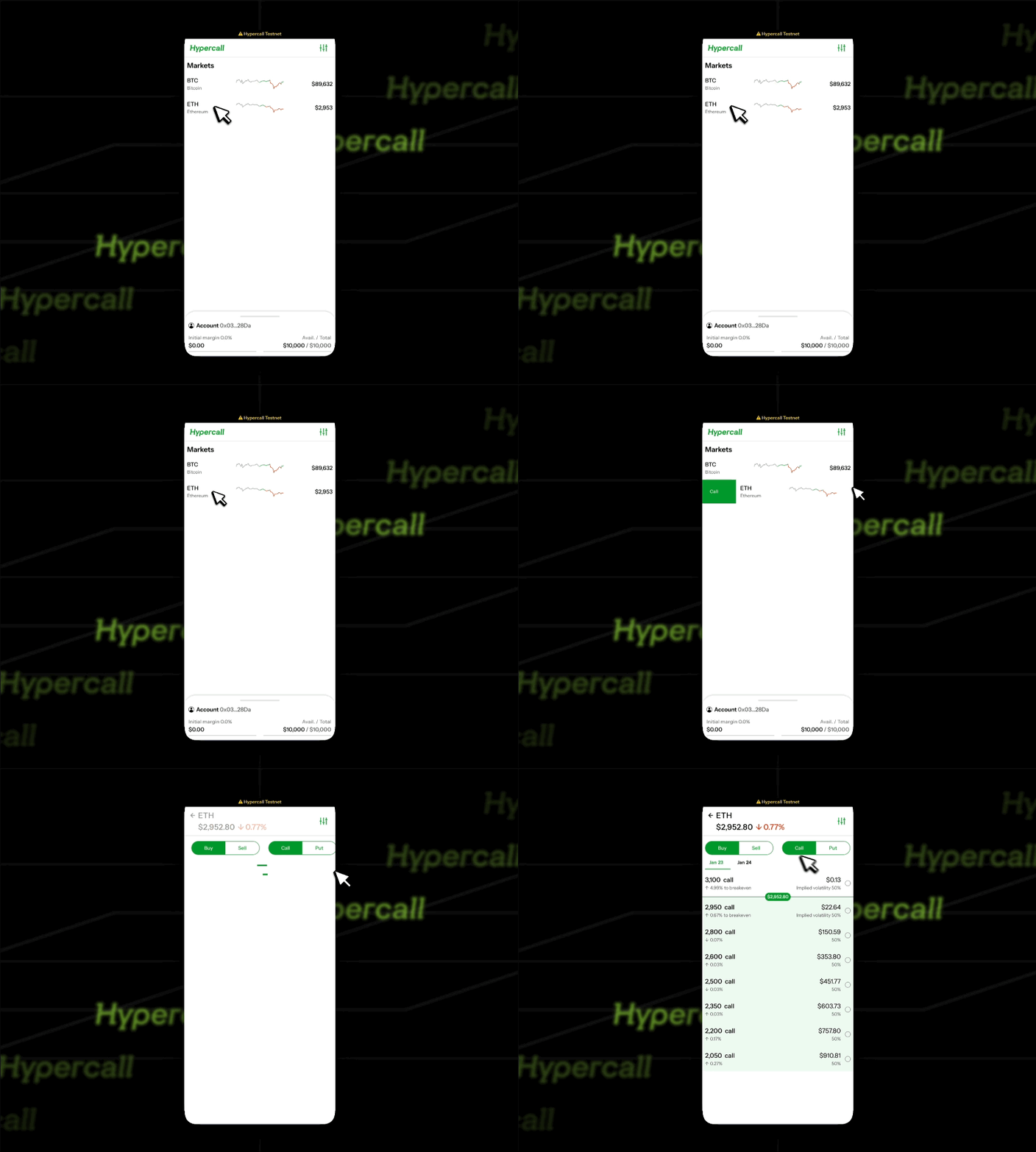
Step 4: Choose a contract and side
- Select Call or Put
- Pick a strike with liquidity
- Tap Next
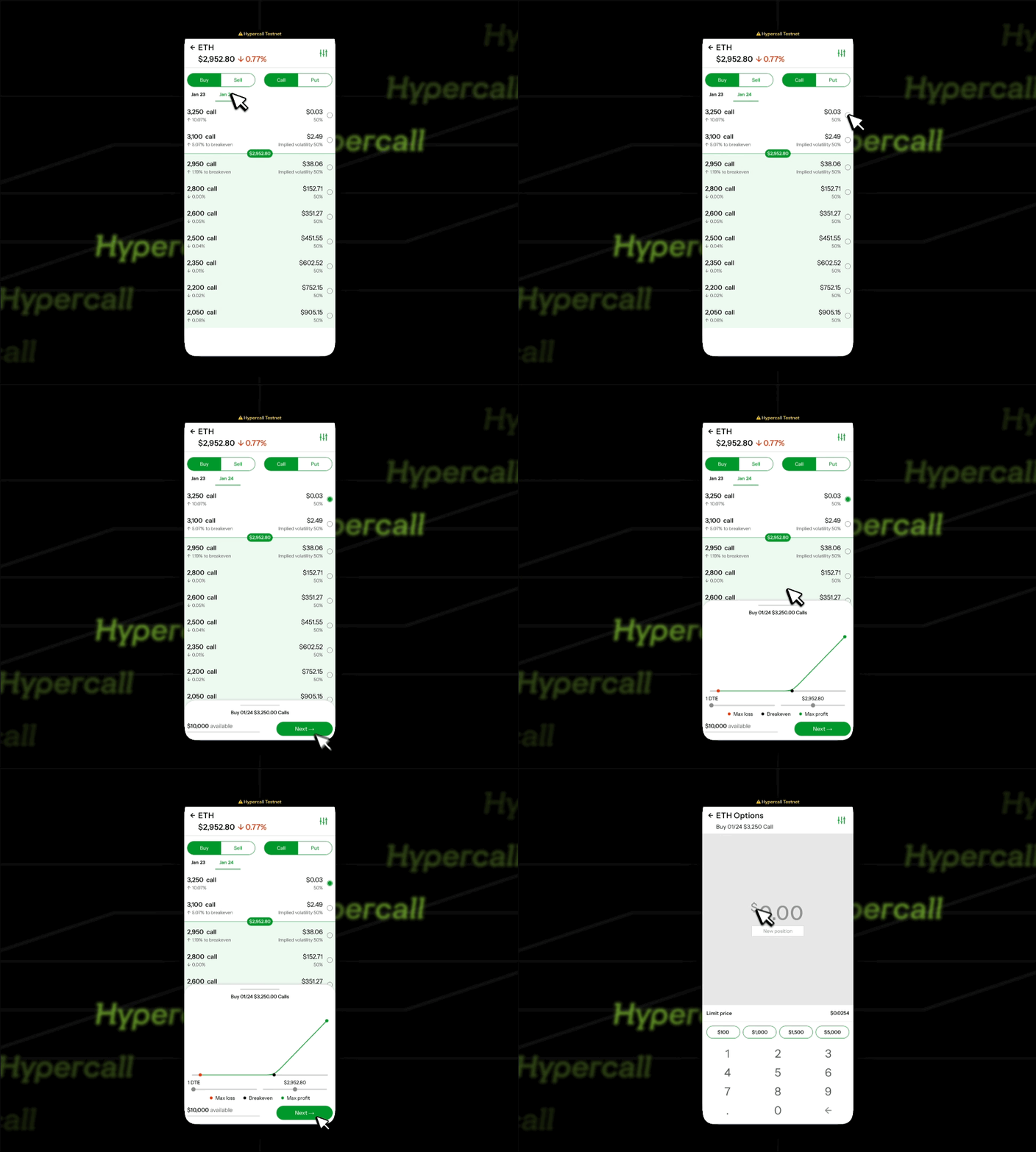
Step 5: Enter order details
- Enter size and limit price
- Review the order summary
- Tap "Place Order"
- Approve the signature in your wallet
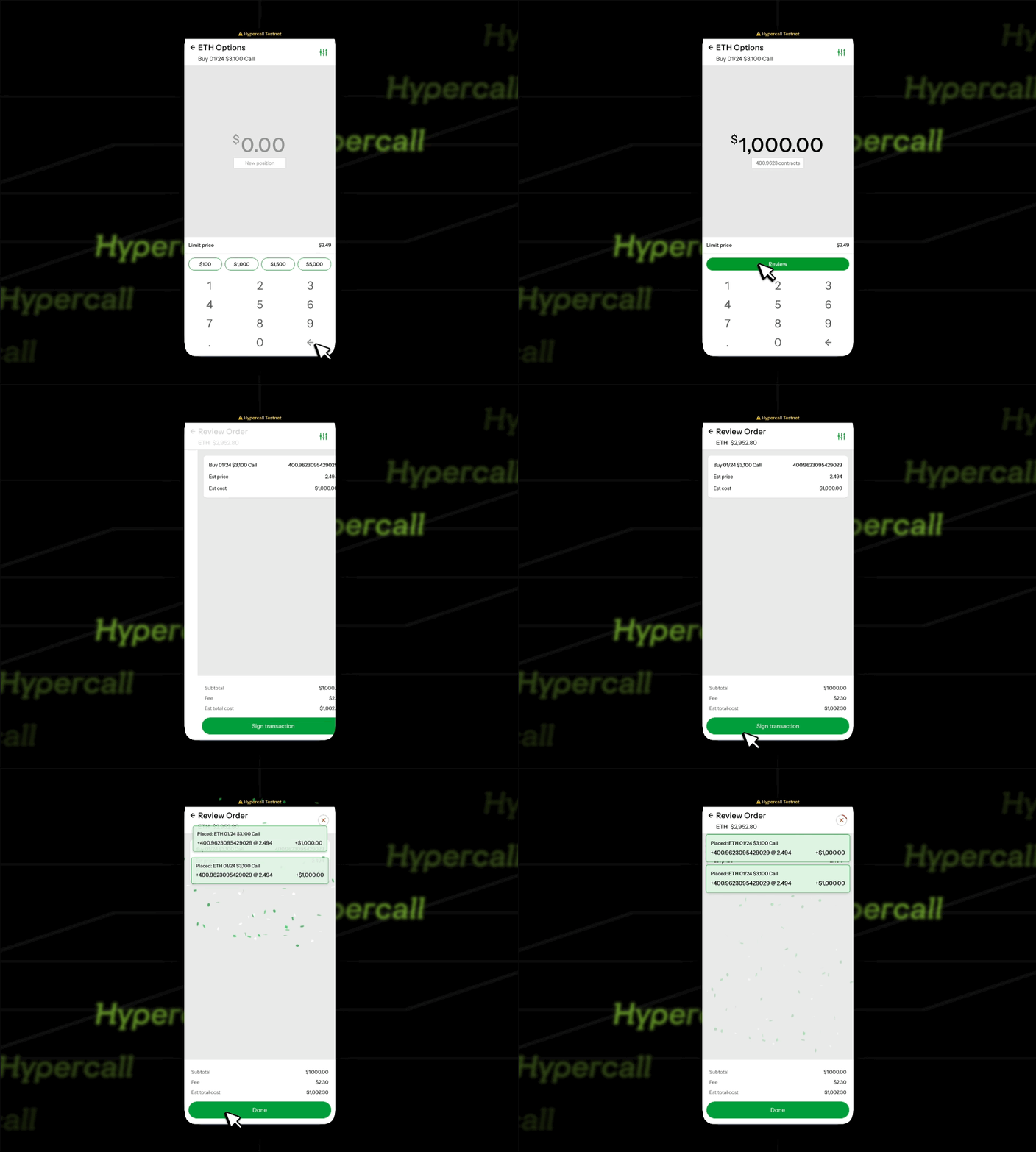
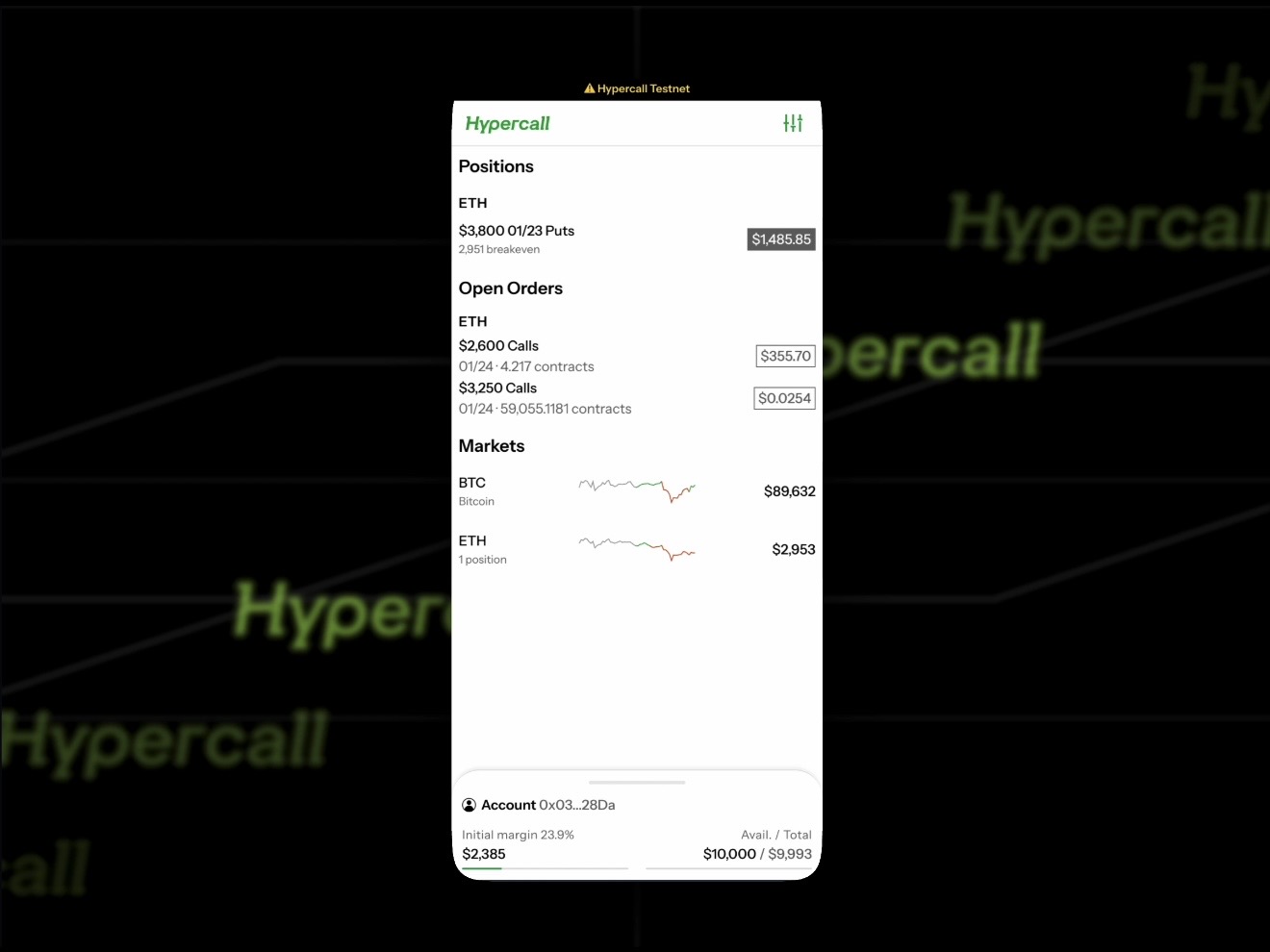
Step 7: Watch order status
- If the order rests, it appears as open
- If it fills, it moves to filled
- Open the portfolio or positions view
- Confirm the new position and updated balance
Common Failure Modes
"Signature verification failed"
Cause: Signature format mismatch, wrong nonce, or unauthorized agent wallet.
Fix: See Authentication.
"Instrument has expired"
Cause: Option has reached expiry time (08:00 UTC).
Fix: Select a different instrument with future expiry.
"Insufficient margin"
Cause: Account equity is below required margin threshold.
Fix: Reduce order size, close existing positions, or deposit more funds.
"Account has no funds"
Cause: Account cash balance is zero.
Fix: Deposit funds or verify account balance.
Order stuck in "Pending" state
Cause: Order may be queued or system delay.
Fix: Wait a few seconds and refresh the order status. If persistent, check system status.
See also
- REST API - API reference
- Errors & Rejections - Troubleshooting
- Authentication - Signature issues