Tutorial: Close a Position
Step-by-step guide to closing an open position in the app.
Prerequisites
- Active Hypercall account with wallet connected
- At least one open position
- Basic understanding of order status
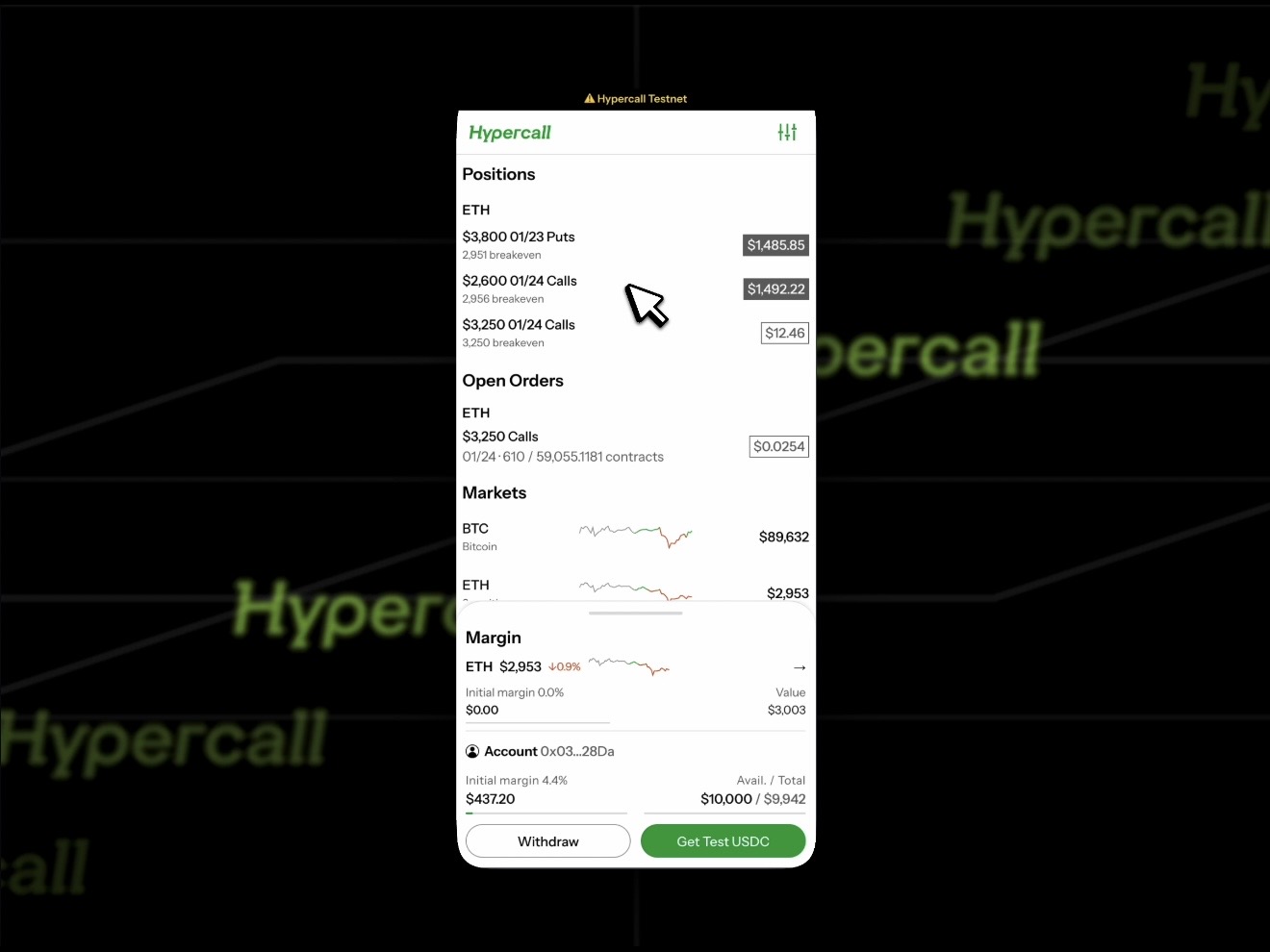
Step 1: Open your positions list
- Open the portfolio or positions tab
- Review your open positions
Step 2: Start the close flow
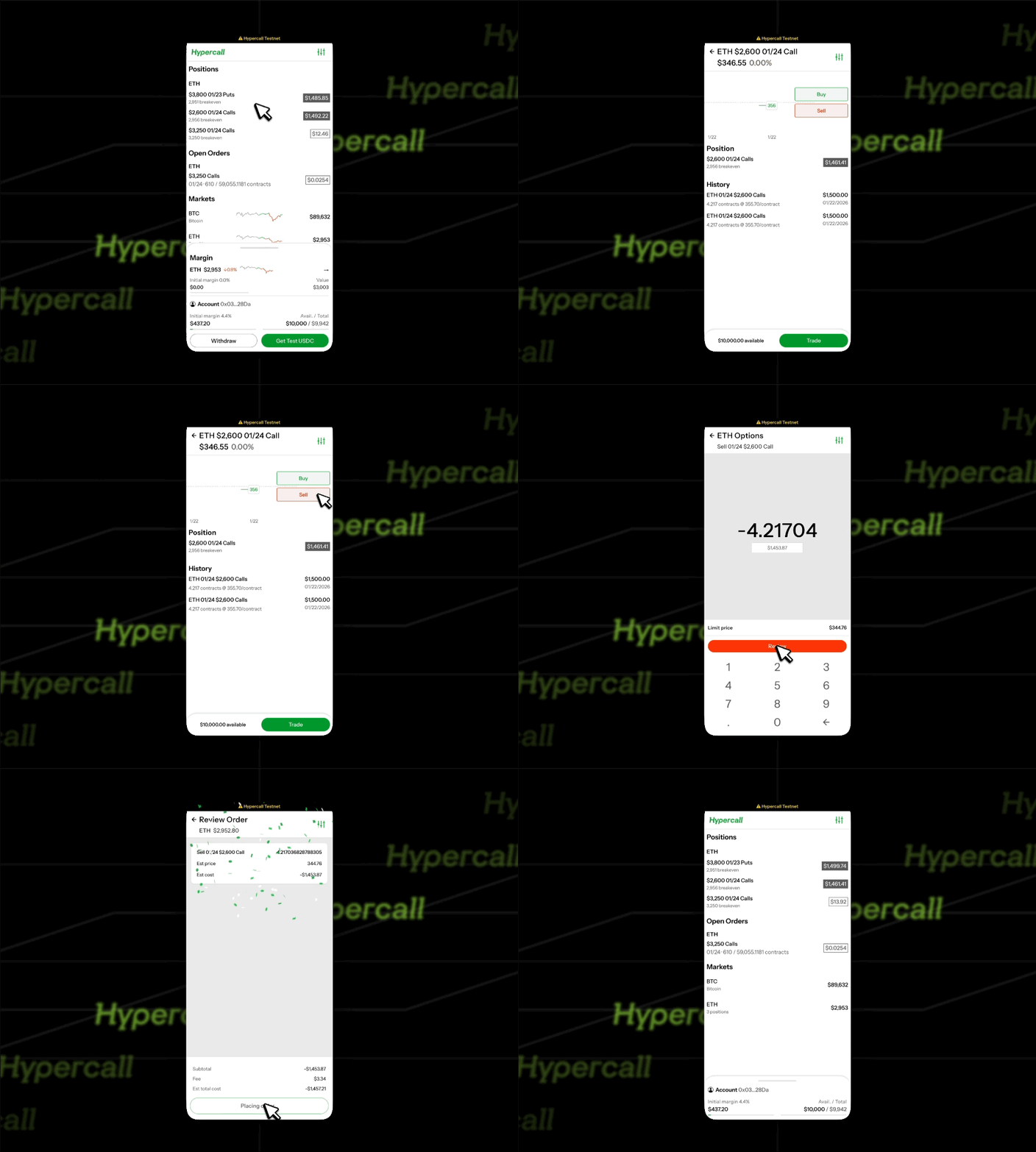
Option A: Chart "Sell" Button
- Tap preferred market on main page
- Tap the "sell" button on the chart
- Review and sign
- Verify position is closed
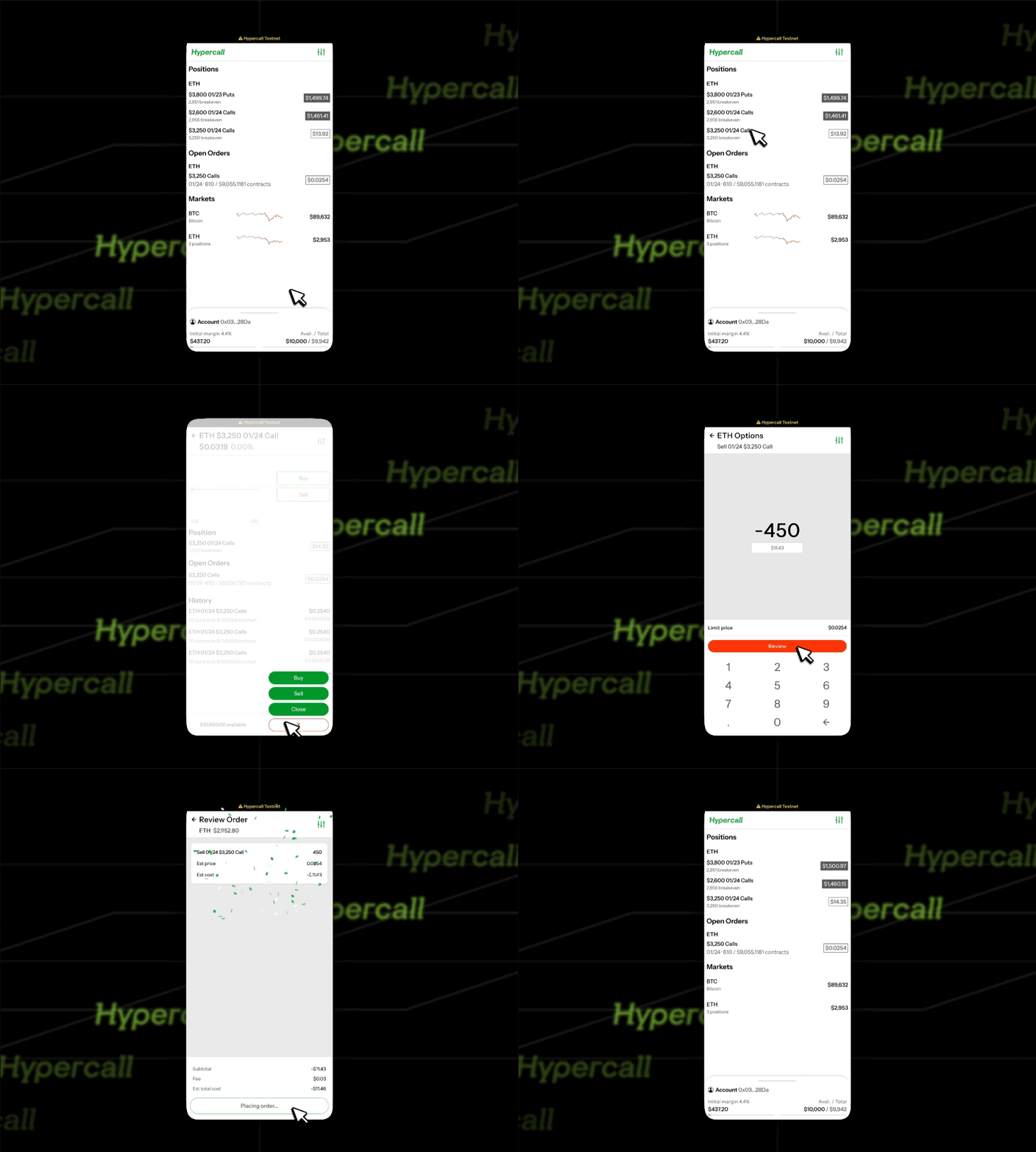
Option B: "Trade" Button
- Tap preferred market on main page
- Tap the "trade" button on the chart
- Tap "sell" or "close" from the options that pop up
- Review and sign
- Verify position is closed
Common Issues
"No position to close"
Cause: The position has already been closed or fully settled.
Fix: Refresh the positions list and confirm the position is still open.
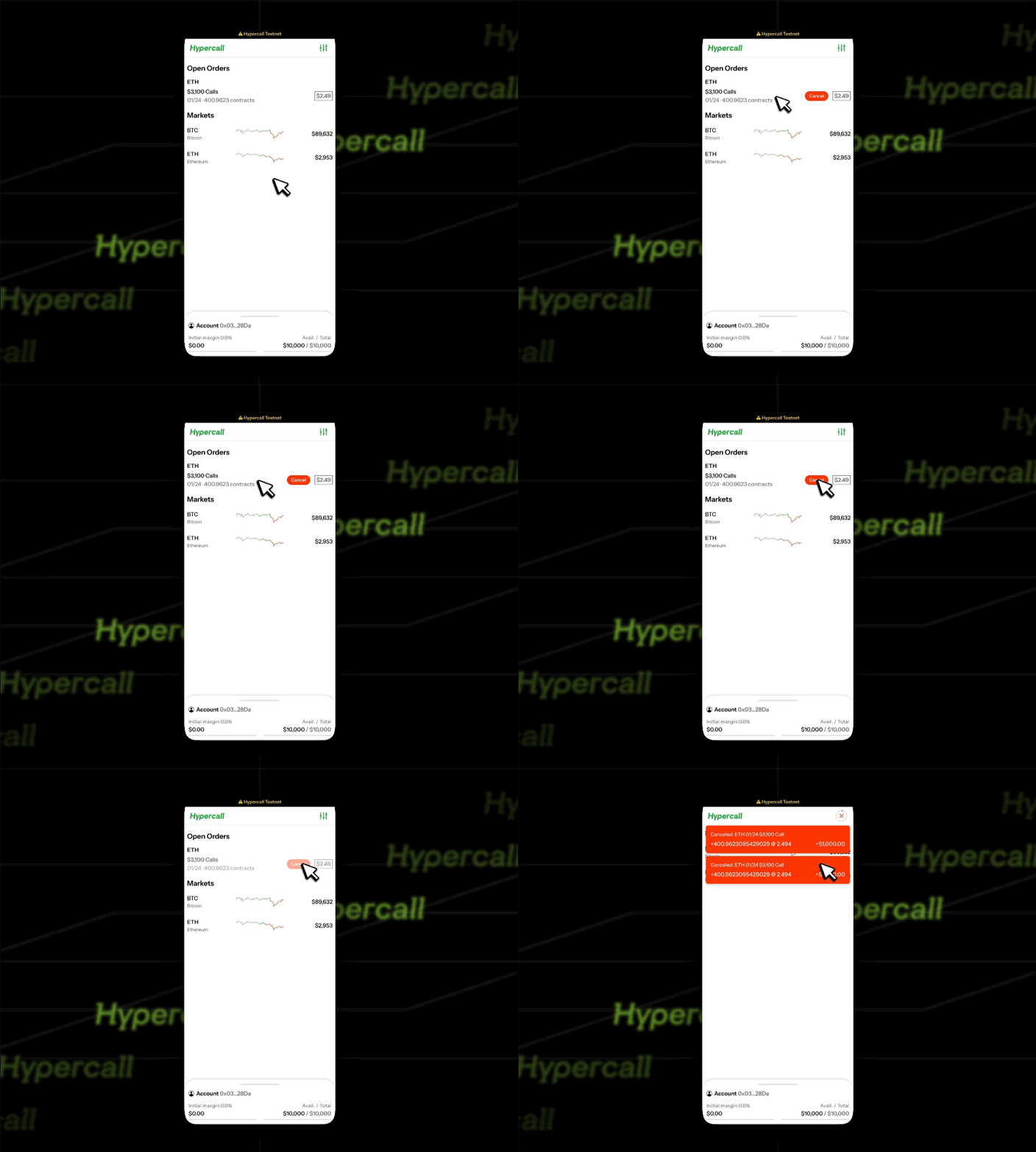
"Close order still open"
Cause: Limit orders can rest until they match.
Fix: Wait for a fill, or cancel and adjust the price.
"Close size exceeds position size"
Cause: The close order size is larger than your current position.
Fix: Reduce the close size or select "Close All" if available.
See also
- Your First Trade - Place orders in the app
- Positions and PnL - Monitor open positions