Trading on Mobile
Hypercall's mobile interface is optimized for quick options trading on the go. Open testnet.hypercall.xyz in any mobile browser to get started.
Before you begin, you need:
- A mobile browser (iOS Safari, Android Chrome, or any in-app wallet browser)
- A wallet or login method: Web3 wallet (MetaMask, Coinbase Wallet, WalletConnect) or email/social login via Privy
- Testnet funds from the faucet
Home Screen
When you first open Hypercall on mobile, you see the landing screen with a live ticker, your equity (if connected), and a list of available markets.
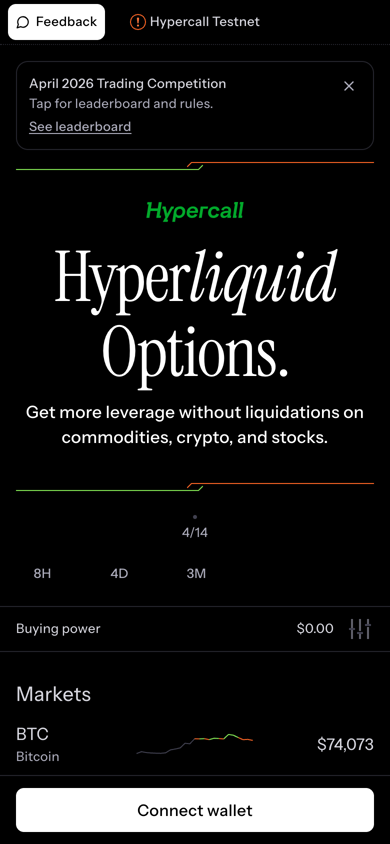
The mobile home screen showing the competition banner, live ticker, buying power, and market list with BTC, ETH, HYPE, US500, and USOIL.
The home screen shows:
- Feedback button (top left) for reporting bugs
- Competition banner linking to the current month's trading competition
- Equity chart with 8H, 4D, and 3M time ranges
- Buying power showing available margin
- Markets list with all available underlyings and live prices
- Connect wallet button at the bottom (or your wallet address if already connected)
Connecting a Wallet
Tap Connect wallet at the bottom of the home screen. You can connect via:
- MetaMask or other injected wallets
- WalletConnect for any compatible mobile wallet
- Coinbase Wallet
- Email or social login via Privy (no wallet required)
After connecting, your wallet address appears at the bottom and your equity and buying power update.
Getting Testnet Funds
Tap Deposit in the bottom navigation to open the faucet.
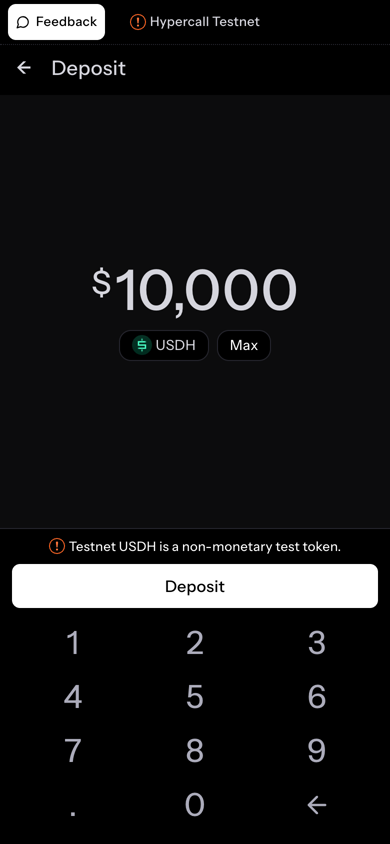
The deposit screen lets you request testnet USDH. Enter an amount up to $10,000 and tap Deposit.
- Enter an amount (up to $10,000 per request)
- Tap Deposit
- Wait for the transaction to confirm
- Your buying power updates on the home screen
Each wallet can receive up to 100,000 cumulative testnet USDC from the faucet. The cap does not reset.
Browsing Markets
From the home screen, tap any underlying to open its market page.
Scroll the home screen to see all markets, then tap an underlying to open its chart and market data.
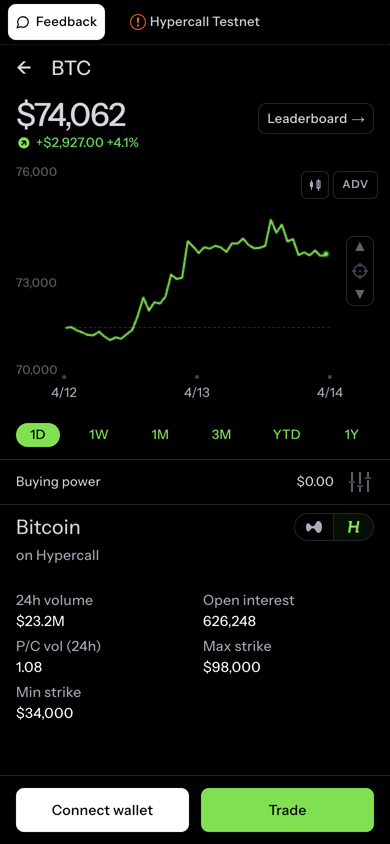
The market page shows:
- Price and 24h change at the top
- Price chart with time range toggles (1D, 1W, 1M, 3M, YTD, 1Y)
- ADV toggle for advanced chart features
- Buying power below the chart
- Market data for the underlying:
- On Hypercall: 24h volume, open interest, put/call volume ratio, max/min strike
- Connect wallet and Trade buttons at the bottom
Tap the Leaderboard link at the top right to view the monthly competition rankings.
The Options Chain
From the market page, tap Trade to open the options chain, or use the swipe shortcuts from the home screen:
- Swipe left on a market to buy a call
- Swipe right to buy a put
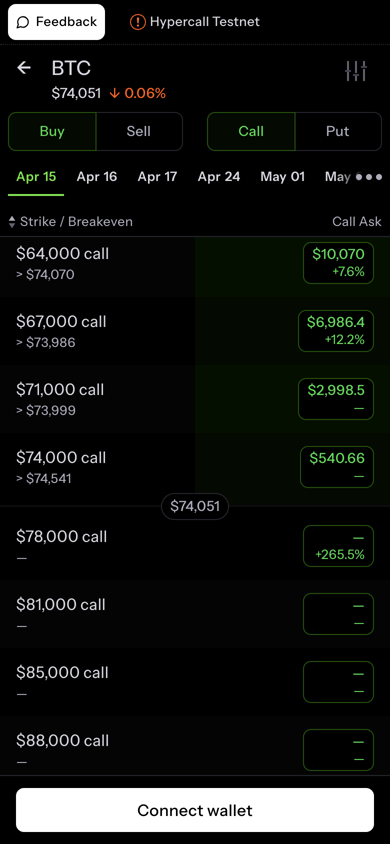
Navigate from the market page to the calls chain, then scroll through strikes.
Calls
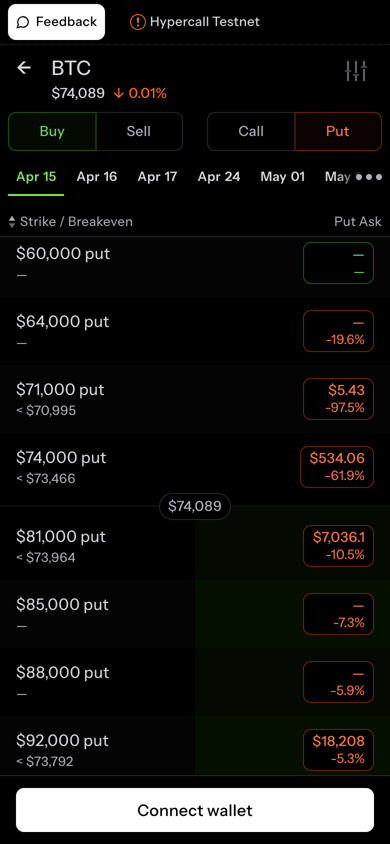
Puts
The chain view shows:
- Buy / Sell toggle at the top
- Call / Put toggle
- Expiry tabs (Apr 15, Apr 16, Apr 17, Apr 24, May 01, and more)
- Strike / Breakeven column showing each strike price and the underlying price needed to break even
- Call Ask column showing the current ask price and 24h change percentage
- Strikes with liquidity show green price bars; illiquid strikes show empty boxes
Tap a strike to open the order entry screen.
Placing an Order
After tapping a strike:
- Review the contract details (underlying, strike, expiry, call/put)
- Enter your order size
- Set your limit price (pre-filled with the current ask)
- Review the order summary
- Tap Place Order
- Approve the EIP-712 signature in your wallet
The order appears in your positions if it fills immediately, or in open orders if it rests on the book.
Managing Positions
After placing trades, your positions are visible from the home screen. Tap a position to see details including:
- Entry price and current mark price
- Unrealized P&L with percentage
- Position Greeks
- Close button to exit the position
Closing a Position
- Tap the position you want to close
- Tap Sell or Close
- Set the size (or close all)
- Review and sign the transaction
Competition Leaderboard
The April 2026 trading competition leaderboard showing top traders ranked by P&L. $1,000 monthly prize pool paid in SYN.
Tap the competition banner on the home screen or navigate to the leaderboard from any market page. The leaderboard shows:
- Prize pool (500 / 200)
- Date range filter
- Ranking metric toggle (P&L, Volume, Efficiency)
- Trader list with wallet address, P&L, volume, and efficiency
- Your own rank is highlighted
See Monthly Competition for full rules, FIFO lot accounting, and eligibility.
Account and Preferences
Tap your wallet address or the account icon to view account settings and preferences.
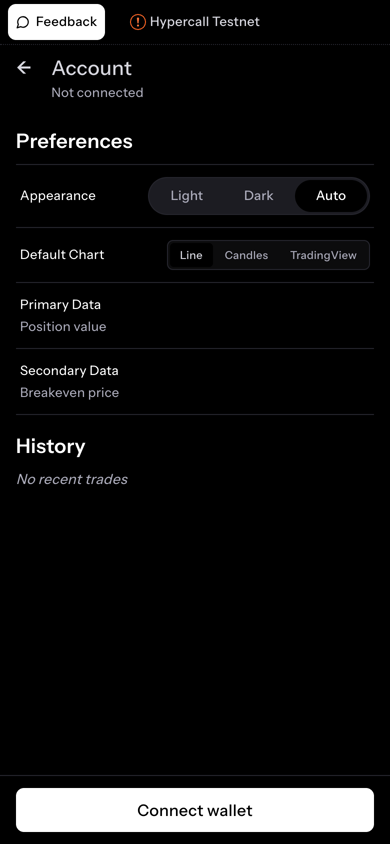
The account page shows appearance, chart, and data display preferences.
| Setting | Options |
|---|---|
| Appearance | Light, Dark, Auto |
| Default Chart | Line, Candles, TradingView |
| Primary Data | Position value, P&L, Cost basis |
| Secondary Data | Breakeven price, Greeks Plus |
| History | Recent trades list |
At the bottom you can disconnect your wallet or manage agent keys.
Push Notifications
Get notified about fills and liquidations even when the app is closed. Hypercall uses standard browser push notifications.
Enabling Notifications
- When prompted, tap Allow to grant notification permission
- The app signs your subscription with your wallet via EIP-712
- Notifications start arriving immediately
If you reconnect your wallet later, the app re-registers your subscription automatically.
What You Get Notified About
| Type | When | Example |
|---|---|---|
| Fill | Your order fills | "Bought 0.5 BTC 631.93 (+$42.15 realized)" |
| Liquidation | Account state changes | "Account moved from Healthy to Warning" |
| Settlement | Option expires | (Coming soon) |
All notification types are enabled by default. You can toggle fills, liquidations, and settlements on or off in the notification settings.
Tapping a notification opens the app directly. Notifications work on iOS Safari, Android Chrome, and all major mobile browsers that support the Web Push API.
Mobile vs Desktop
| Feature | Mobile | Desktop |
|---|---|---|
| Markets | Scrollable list on home screen | Persistent sidebar |
| Options chain | Full-screen chain view | Inline panel with chart |
| Order entry | Dedicated screen after tapping strike | Side panel with payoff diagram |
| Portfolio | Position list on home screen | Tabbed table (Positions, Greeks, Orders, History, Payouts, Liquidations) |
| Search | N/A | Cmd+K command palette |
| Keyboard shortcuts | N/A | Full shortcut set |
| Ghost mode | N/A | View any wallet's portfolio |
| Swipe gestures | Swipe to buy call/put | N/A |
For the full desktop experience, see Trading on Desktop.
Tips for Mobile Trading
- Use swipe gestures from the home screen for the fastest path to placing an order
- Check the competition leaderboard regularly, your rank updates after each trade
- Use the Feedback button (top left) to report bugs directly to the engineering team
- Bookmark testnet.hypercall.xyz on your home screen for quick access
See Also
- Trading on Desktop - Full desktop guide with keyboard shortcuts, search, and ghost mode
- Monthly Competition - Competition rules and prize structure
- Reporting Bugs - How to submit feedback
- Margining - How margin and liquidation work
- API Trading - Programmatic access